

Updated June 2026
You published your blog.
Days passed.
Still nothing.
No impressions.
No clicks.
No rankings.
Before changing your content, ask one question:
Has Google actually indexed your page?
Because a published page and an indexed page are not the same thing, and if you do not know how to check if Google indexed your blog, you could spend months improving content that Google cannot even see.
This guide shows exactly how to tell whether Google has indexed your blog and what to do if it hasn’t.
How to Know If Google Indexed Your Blog: Two Quick Methods, Published Does Not Mean Indexed
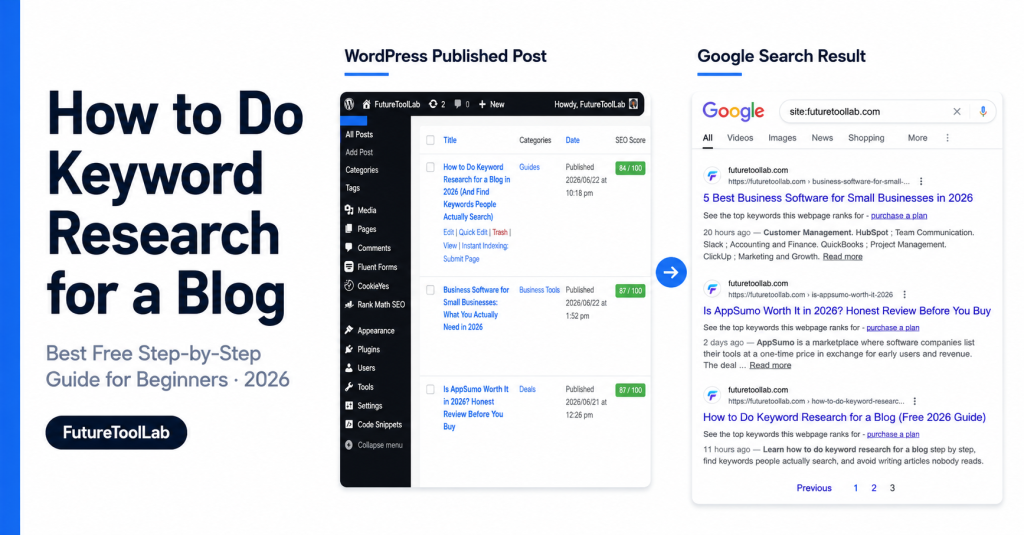
This is the most common misunderstanding among new bloggers.
When you hit publish in WordPress, your page goes live on your website.
That is it.
Google has not seen it yet.
Google does not know your page exists until its crawler – called Googlebot – visits your site, reads your content, and adds your page to its index.
The index is the database Google uses to serve search results.
If your page is not in that database, it will not appear in any search result, for any keyword, no matter how well-written or optimized it is.
A page can remain unpublished for weeks without being indexed, especially on new sites that Google has not yet crawled.
This is why checking indexing is always the first step before troubleshooting anything else.
Many bloggers spend weeks rewriting content, changing titles, and experimenting with keywords when the real problem is simply that Google has not seen the page yet.
Knowing how to tell if Google has indexed your blog saves you from wasting time on problems that do not yet exist.
Method 1 – Use Google Search to Check Indexing
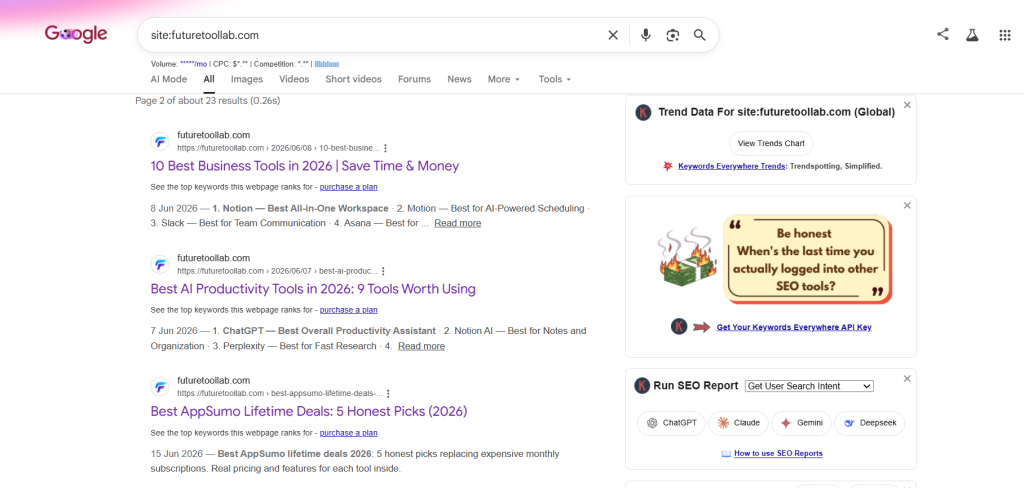
The fastest way to check if Google has indexed your blog is a simple search query.
Open Google and type this into the search bar:
site:yourdomain.com
Replace yourdomain.com with your actual domain name.
Press enter.
What the results tell you:
If pages appear in the results, Google has indexed at least some of your content.
The number shown at the top – “About X results” – gives you a rough estimate of how many of your pages are in Google’s index.
If you see zero results or a message saying no results were found, Google has not indexed your site yet, or something is preventing it.
If you want to check a specific page rather than your whole site, type:
site:yourdomain.com/your-post-slug
If that exact page appears, it is indexed.
If nothing appears, that specific page has not been indexed, even if other pages on your site have.
This method gives you a quick answer in under thirty seconds.
One thing to note: the number Google shows is an estimate, not an exact count; do not rely on it as a precise figure.
Use it as a general indicator and then use Search Console for the detailed picture.
Method 2 – Use Google Search Console
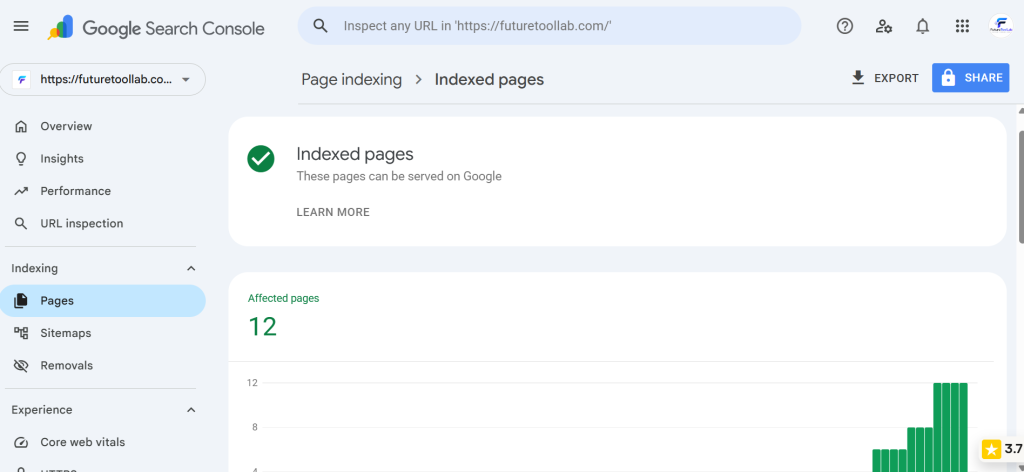
The site: search gives you a rough picture. Google Search Console gives you the full picture.
Search Console is a free tool from Google that shows you exactly how Google sees your site, which pages are indexed, which are not, and why.
If you have not set it up yet, do that first; Go to search.google.com/search-console and add your property. Note that verification takes a few minutes.
Once inside, there are three places to check indexing.
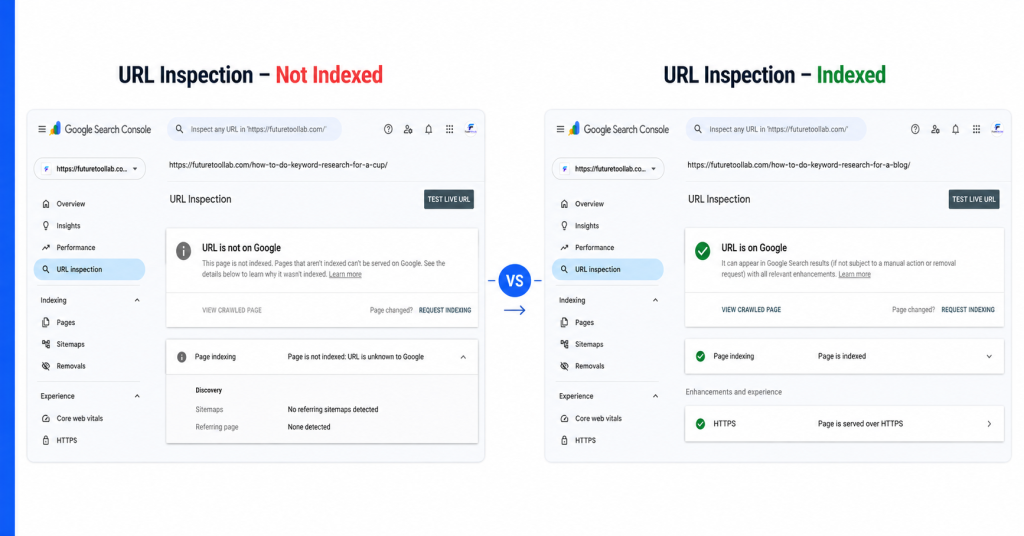
URL Inspection
This is the most direct check.
Paste any URL from your site into the inspection bar at the top of Search Console and press Enter.
Google will tell you one of two things.
Either “URL is on Google,” which means the page is indexed and can appear in search results.
Or “URL is not on Google” – which means the page is not currently indexed, and Search Console will usually tell you why.
This is the most reliable way to check the exact indexing status of any individual page.
Request Indexing
If a page is not indexed, you can ask Google to crawl it directly from the URL inspection screen.
Click “Request indexing” after running the URL inspection.
Google will add the URL to a crawl queue and process it usually within hours to a few days.
This does not guarantee immediate indexing; it tells Google the page exists and asks it to look sooner.
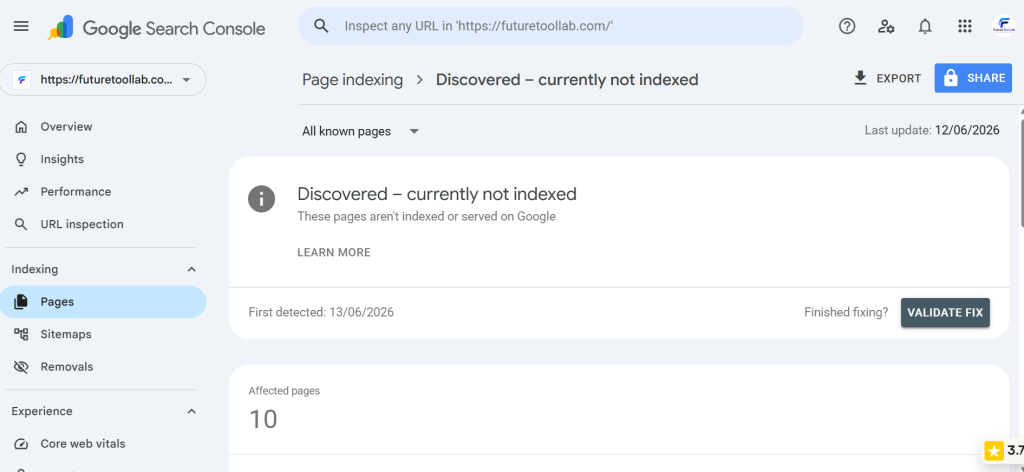
Page Indexing Report
Inside Search Console, go to Indexing and then Pages.
This report shows the full status of every page Google has tried to crawl on your site.
It splits pages into two groups: indexed and not indexed.
For pages that are not indexed, it shows the reason.
Common reasons you will see here include:
Crawled but not currently indexed.
Discovered but not yet crawled.
Blocked by robots.txt.
Noindex tag detected.
Each reason tells you something different and points you toward a different fix.
Reasons Google Is Not Indexing Your Blog
Understanding why a page is not indexed is more useful than knowing that it is not indexed.
Here are the most common causes.
noindex tag.
If your page has a noindex meta tag in the HTML header, Google will read your page but deliberately exclude it from the index.
This is often set accidentally in WordPress settings, especially the “Discourage search engines from indexing this site” setting under Settings and Reading.
It can also be set on individual posts through your SEO plugin.
In RankMath, check the Advanced tab on each post to make sure the robots setting is not set to noindex. Check this before anything else.
Blocked by robots.txt.
Your robots.txt file tells Google which parts of your site it can and cannot crawl.
If your blog or specific pages are blocked here, Google will not index them. Check your robots.txt by visiting yourdomain.com/robots.txt.
New website.
Google crawls established sites more frequently than new ones.
If your blog launched recently, Google may simply not have visited yet. This is normal and resolves with time.
Thin or duplicate content.
Google may choose not to index pages it considers low quality, very short, or too similar to other pages already in the index.
If a post is under 300 words with no original insight, it may be skipped entirely.
This is not always permanent. Expanding a thin post with more depth and practical information often results in Google indexing it on the next crawl.
Poor internal linking.
If no other page on your site links to a new post, Google’s crawler may not find it. Internal links act as pathways for Googlebot to discover new content.
Duplicate pages.
Multiple URLs showing the same content can confuse Google.
Pagination pages, tag archives, and category pages sometimes create duplicate content issues. Canonical tags help resolve this.
How to Fix Indexing Problems
Once you know the reason, the fix is usually straightforward.
Check your WordPress visibility settings.
Go to Settings and then Reading in your WordPress dashboard. Make sure the box labeled “Discourage search engines from indexing this site” is unchecked.
This single setting has blocked countless sites from being indexed accidentally.
Inspect the URL and request indexing.
For any page that is not indexed, use the URL inspection tool in Search Console and click Request indexing. Do this for your most important pages first.
Submit your sitemap.
A sitemap is a file that lists every page on your site and tells Google where to find them.
Most WordPress SEO plugins, including RankMath, generate a sitemap automatically.
In Search Console, go to Sitemaps and submit your sitemap URL. It usually looks like yourdomain.com/sitemap.xml.
Improve thin content.
If a page has very little content, expand it. Add more depth, more practical information, more context.
Google is more likely to index and rank pages that demonstrate genuine value.
Build internal links.
Link to new posts from your existing published posts. Every internal link is a pathway for Google to find and crawl new content faster.
Wait.
For new sites, especially, patience is part of the process.
Google crawls new domains less frequently than established ones. Indexing can take days or weeks on a brand-new site, even after you have done everything correctly.
If your pages are indexed but still not getting impressions, the next thing to learn is how to find keywords people actually search for before publishing.
Read more: How to Do Keyword Research for a Blog in 2026
How Long Indexing Usually Takes
There is no fixed answer. But here is what experience shows.
Hours – for established sites with frequent crawl schedules. If you use Request indexing in Search Console, fast crawls can happen within hours.
Days – the most common timeframe for blogs that are already indexed and publishing new content regularly.
Weeks – for brand new sites or pages with very few internal links pointing to them. Google crawls unfamiliar sites cautiously at first.
Months – rare but possible for sites with very low crawl budgets, sparse content, or no inbound links at all.
The safest thing you can do while waiting is to publish consistently, build internal links between posts, and monitor Search Console regularly.
Avoid publishing twenty new articles while one page is not indexed.
Fix the indexing problem first, then continue publishing.
No tool can force Google to index your content immediately.
Request indexing is the closest thing, and even that is a queue rather than a guarantee.
One thing that speeds up indexing significantly over time is building backlinks from other websites pointing to yours.
When other sites link to your blog, Google discovers your content through those links and crawls it more frequently.
You do not need hundreds of backlinks. Even a handful of genuine links from relevant sites can make a noticeable difference in how quickly Google finds and indexes new content.
Frequently Asked Questions
How do I know Google indexed my page?
Search site:yourdomain.com/your-page-slug on Google.
If the page appears in results, it is indexed.
For more details, use the URL inspection tool inside Google Search Console, which gives you a precise indexed or not indexed status.
Why is Google not indexing my blog?
The most common reasons are a noindex tag accidentally applied, a search engine visibility setting turned off in WordPress, the site being too new for Google to have crawled yet, or content being too thin for Google to consider worth indexing.
How long does indexing take?
For established sites, hours to a few days. For brand new sites, anywhere from days to several weeks.
There is no guaranteed timeline. Publishing consistently and building internal links speeds up the process over time.
Can I force Google to index my pages?
You cannot force it, but you can request it. The URL inspection tool inside Google Search Console includes a Request indexing button.
This adds your page to Google’s crawl queue and typically results in faster processing.
Why do my indexed pages get no traffic?
Indexing means Google can see your page.
It does not mean Google will rank it highly.
Pages that are indexed but get no traffic usually need better keyword targeting, stronger content, or more authority built through links and engagement over time.
Knowing how to know if Google indexed your blog is the first step every blogger should take before troubleshooting anything else.
Final Verdict
If your blog is not indexed, SEO is not your first problem.
Visibility is.
Check indexing first. Fix the barriers. Then optimise.
No amount of keyword research or content improvement helps a page that Google cannot see.
Run the site: search. Open Search Console. Check the URL inspection. Submit your sitemap.
Do those four things, and you will know exactly where you stand.
Indexing is not complicated once you know what to look for. The tools are free. The process is straightforward.
And solving an indexing problem often fixes what looks like an SEO problem.
Most blogs are not indexed because of one simple setting or one missing step. Find it. Fix it.
Then focus on everything else.
All methods described reflect publicly available tools and processes as of June 2026.
Explore More on FutureToolLab
- How to Do Keyword Research for a Blog in 2026
- How to Start a Profitable Blog in 2026
- Top 10 Digital Skills to Learn in 2026
Explore more guides and practical resources at FutureToolLab.com
Share how to know if Google indexed your blog.